
Download iOS Data Recovery – Free, Secure & Reliable iOS Data Recovery Tool for iPhone, iPad & iPod
Lost important photos, messages, contacts, or videos on your iPhone, iPad, or iPod Touch? iOS Data Recovery is a powerful, user-friendly software designed exclusively for Windows users to recover lost or deleted data from Apple devices. Whether your data vanished after a system update, accidental deletion, or device failure, this reliable tool helps you retrieve lost files with minimal effort.
Compatible with all iOS versions, including the latest iOS 17 and iOS 18, it supports every generation of iPhone, iPad, and iPod Touch. With support for a wide range of file formats such as JPEG, PNG, MOV, M4A, TIFF, and more, iOS Data Recovery ensures you don’t lose precious memories or critical information. The software is free to download and offers a secure recovery process with no risk of data overwriting.
Get back your SMS, MMS, contacts, notes, Safari bookmarks, and more—quickly and safely.
Key Features of iOS Data Recovery
When it comes to recovering lost data from Apple devices, iOS Data Recovery stands out with its comprehensive and intuitive feature set. One of the most impressive aspects is its ability to recover data directly from your device’s internal storage without requiring a backup. This is a game-changer for users who haven’t enabled iCloud or iTunes backups, as it eliminates the dependency on prior backups. The software supports recovery of over 20 different file types, including photos, videos, messages, contacts, notes, call logs, calendar entries, and Safari bookmarks. Whether you accidentally deleted a vacation video or lost a crucial text message, this tool can retrieve it.
Another standout feature is its compatibility with all iOS versions, from iOS 10 up to the latest iOS 18. This ensures that even users with the newest iPhone models, such as the iPhone 15 series, can use the software effectively. The tool also supports all generations of iPhone, iPad, and iPod Touch, making it a universal solution for Apple users. The interface is clean and beginner-friendly, guiding you step-by-step through the recovery process. You can preview files before recovery, which allows you to select only the data you need and avoid cluttering your system with unnecessary files.
Additionally, iOS Data Recovery uses advanced scanning algorithms that deeply analyze the device’s storage to locate deleted data before it’s overwritten. This increases the success rate significantly, especially if you’ve just lost data and act quickly. The software also offers a “Deep Scan” mode for more complex recovery scenarios, such as after a factory reset or system crash. With no need for technical expertise, this tool empowers both novice and experienced users to regain control of their lost digital lives.
How to Install and Use iOS Data Recovery on Windows
Getting started with iOS Data Recovery is simple and requires just a few steps. First, visit the official website and download the free version of the software. The installer is lightweight, secure, and free from malware or bundled adware. Once downloaded, run the setup file and follow the on-screen instructions to install the application. The entire process takes less than two minutes and requires no advanced configuration.
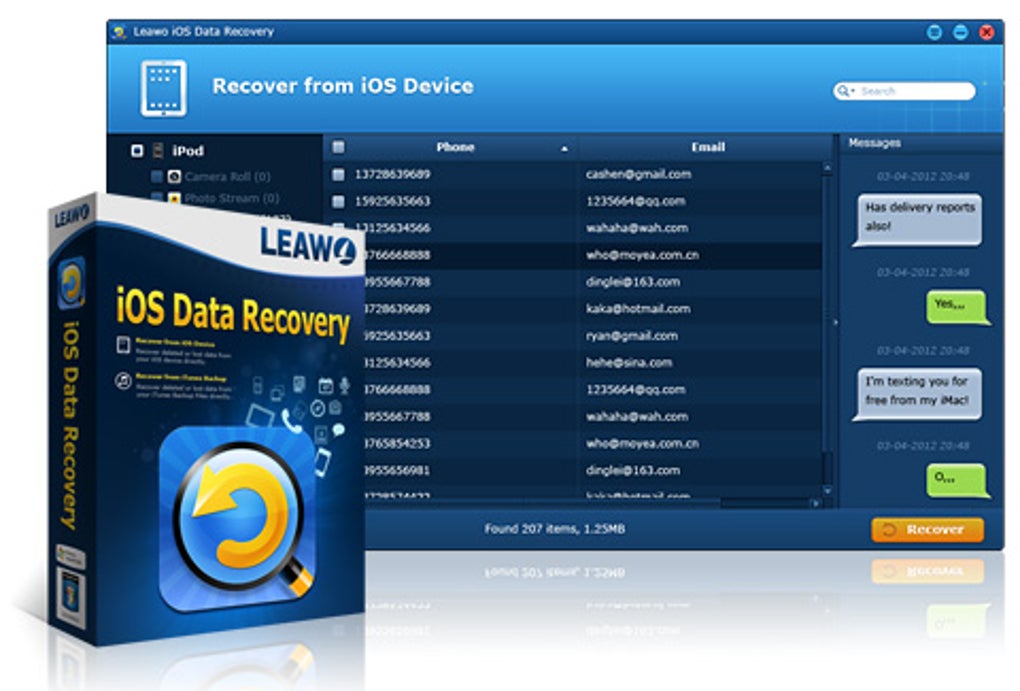
After installation, launch the software and connect your iPhone, iPad, or iPod Touch to your Windows PC using a genuine USB cable. The software will automatically detect your device and prompt you to trust it if it’s the first time connecting. Once trusted, you’ll be directed to the main interface where you can choose between two recovery modes: “Recover from iOS Device” and “Recover from iTunes Backup.” If you haven’t backed up your device recently, use the first option to scan directly from the device’s storage.
Click “Start Scan” and wait for the software to analyze your device. The scan duration depends on the amount of data and device storage, but it typically takes between 5 to 15 minutes. Once complete, you’ll see a preview of all recoverable files organized by category. Select the files you want to restore—such as photos, messages, or contacts—and click “Recover.” Choose a safe location on your PC to save the recovered data, and the process begins. The entire workflow is intuitive, secure, and designed for maximum efficiency.
Compatibility & System Requirements
iOS Data Recovery is specifically designed for the Windows operating system, making it an ideal choice for users who rely on PCs for their daily tasks. It is compatible with Windows 7, Windows 8, Windows 10, and Windows 11, ensuring broad accessibility across both older and modern systems. The software does not support macOS or Linux, so Mac users should consider alternative tools like iMyFone or Dr.Fone.
For iOS devices, the software supports every model released since the original iPhone, including the latest iPhone 15, iPhone 14 Pro, iPad Pro, iPad Air, and iPod Touch (7th generation). It works seamlessly with all iOS versions, from iOS 10 to the latest iOS 18, ensuring future-proof compatibility. This wide range of support means that whether you’re using an older device or a brand-new iPhone, the software will work effectively.
To ensure optimal performance, your Windows PC should have at least 2 GB of RAM, 500 MB of free disk space, and a USB 2.0 or higher port. A stable internet connection is recommended for updates and license activation, although the core recovery process works offline. The software is lightweight and does not consume significant system resources, so it won’t slow down your computer during scans.
Pros and Cons of iOS Data Recovery
- Pros:
- Free to download and use with no hidden costs
- Supports all iOS versions and Apple devices
- Recovers data directly from device without backup
- Wide range of file formats supported (photos, videos, messages, contacts, etc.)
- Intuitive interface with file preview before recovery
- Safe and secure—no risk of data overwriting
- Cons:
- Only available for Windows (no Mac or Linux support)
- Advanced features require a paid license
- Deep scan can take longer on high-storage devices
- No built-in backup creation feature
- Customer support is limited to online documentation
Frequently Asked Questions (FAQ)
- Can iOS Data Recovery recover data after a factory reset?
-
Yes, iOS Data Recovery can recover data after a factory reset, especially if the data hasn’t been overwritten. The software uses deep scanning to locate deleted files in the device’s storage. For best results, act quickly after the reset and avoid using the device to prevent overwriting.
- Is iOS Data Recovery safe to use on my iPhone?
-
Yes, the software is completely safe and non-destructive. It reads data from your device without modifying or damaging the original files. Your data remains intact, and the recovery process is designed to prevent overwriting.
- Do I need a backup to use iOS Data Recovery?
-
No, one of the biggest advantages of this tool is that it can recover data directly from your device’s storage, even if you haven’t created a backup. This makes it ideal for users who rely solely on iCloud or iTunes backups.
- Can I recover deleted messages and contacts?
-
Absolutely. iOS Data Recovery supports recovery of SMS, MMS, contacts, notes, call logs, and more. You can preview these files before recovery to ensure you’re getting the right data.
- How long does the recovery process take?
-
The scan time varies depending on your device’s storage size and the amount of data. A typical scan takes between 5 to 15 minutes. Deep scans may take longer, especially on devices with large storage capacity.
Final Verdict: Is iOS Data Recovery Worth It?
If you’ve lost important data on your iPhone, iPad, or iPod Touch and are using a Windows PC, iOS Data Recovery is one of the most reliable and accessible tools available. Its ability to recover data without requiring a prior backup sets it apart from many competitors. The free version offers robust functionality, making it a great choice for casual users who need a quick fix. While advanced features like batch recovery and unlimited file recovery require a paid upgrade, the core recovery capabilities are powerful and effective.
With strong compatibility, a secure scanning process, and an easy-to-use interface, this software delivers excellent value for its price—especially since it’s free to download. Whether you’ve deleted a family photo, lost a business contact, or accidentally wiped your messages, iOS Data Recovery gives you a second chance to reclaim what matters most.
Download iOS Data Recovery today and take control of your digital life. Don’t wait—act fast to maximize your chances of successful recovery. Your memories are worth protecting.